> For the complete documentation index, see [llms.txt](https://docs.discloud.com/llms.txt). Markdown versions of documentation pages are available by appending `.md` to page URLs; this page is available as [Markdown](https://docs.discloud.com/en/faq/general-questions/how-to-create-a-subdomain.md).
# How to create a subdomain?
Learn how to register and manage custom Discloud subdomains for your applications.
## 🌐 What is a Discloud Subdomain?
On **Discloud**, any app that uses a **port** and requires **external access** through it to be accessed is considered a site. This includes bots with dashboards, dashboards, APIs, static and dynamic sites, and many others…
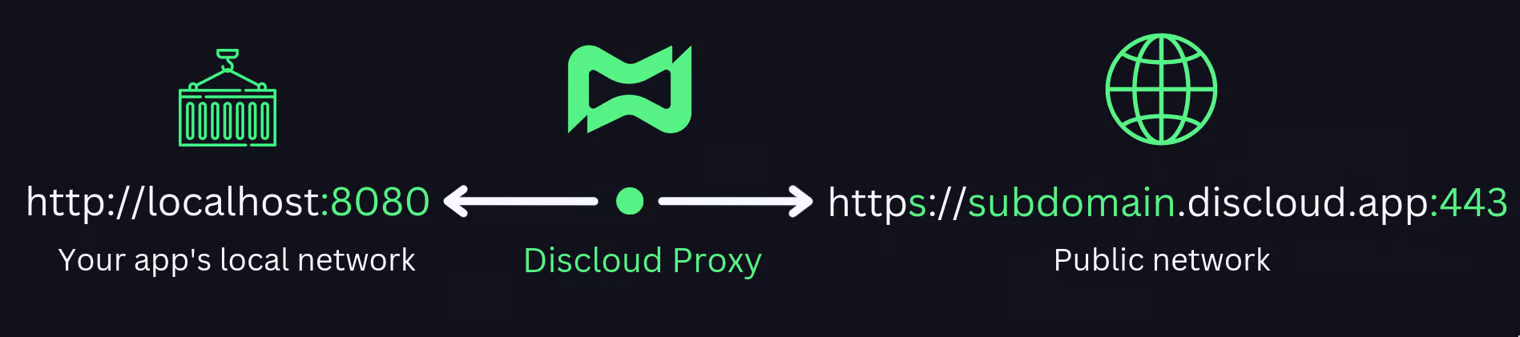
To allow external access to your app, Discloud offers the option to create a **custom subdomain**. This subdomain redirects traffic through the Discloud proxy to **port 8080** of your app, allowing you and users to access your site **securely and reliably**.
### 📡 How it Works
{% hint style="info" %}
#### **`.discloud.app` or `.discloud.dev`?**
Your subdomain ends up on `.discloud.app` or on `.discloud.dev`. You don't choose which: Discloud chooses the domain automatically when the subdomain is created, depending on the demand on each domain. In `discloud.config`, you always use only the subdomain name.
{% endhint %}
***
## ✅ Requirements
To register and use a Discloud subdomain, you must meet the following requirements:
{% hint style="success" %}
[Platinum Plan or Higher](https://discloud.com/plans) is required to host websites or APIs.
{% endhint %}
{% hint style="success" %}
**Port 8080** – Your application must listen on port 8080 for external traffic
{% endhint %}
{% hint style="success" %}
**Discloud Config** – Your app must include a properly configured [`discloud.config`](/en/configurations/discloud.config.md) file
{% endhint %}
***
## 🚀 Register Your Subdomain
{% stepper %}
{% step %}
Open the [**Discloud Dashboard**](https://discloud.com/dashboard).
{% endstep %}
{% step %}
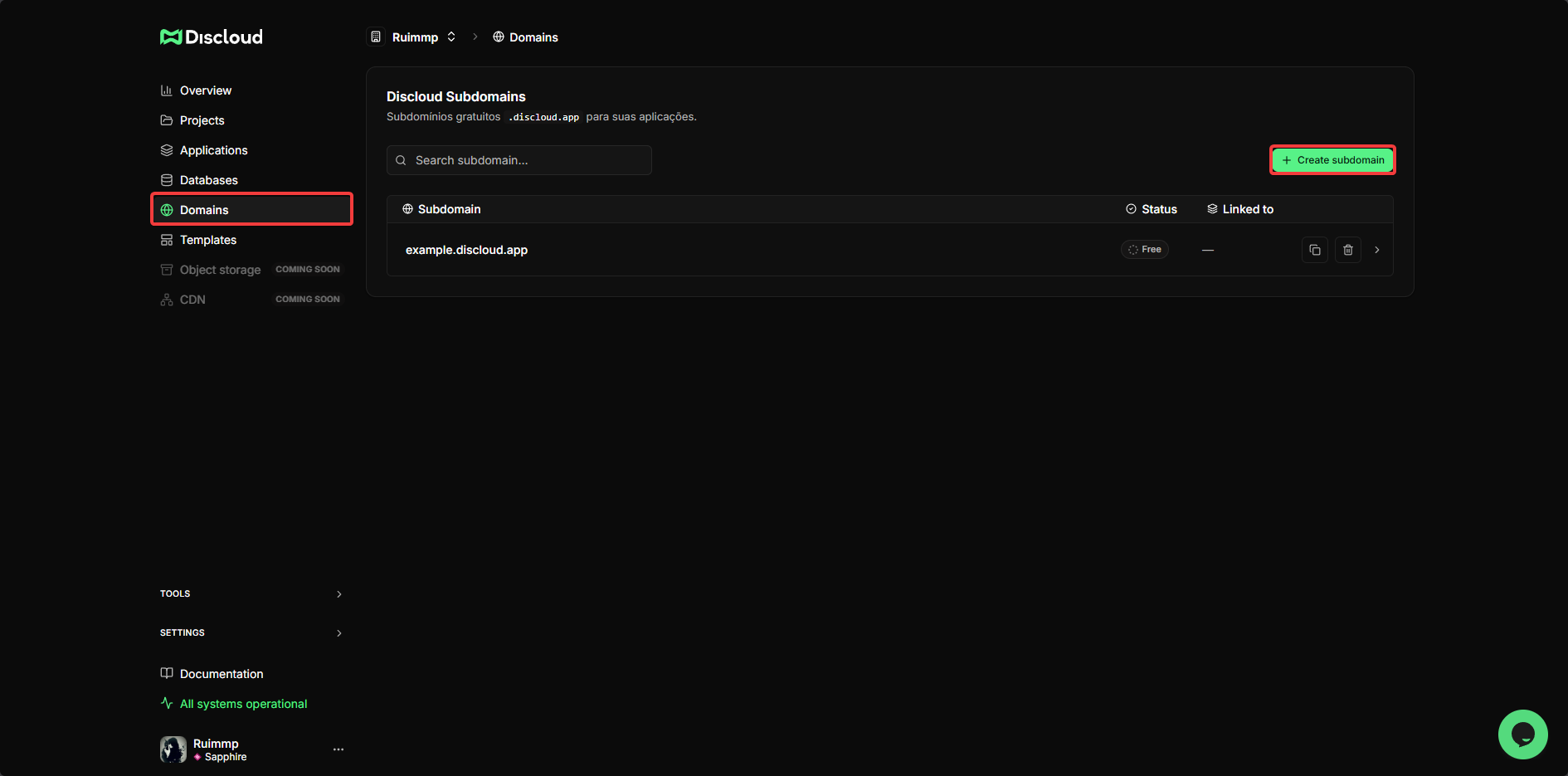
Click the `Domains` tab in the side menu of your account page.
{% endstep %}
{% step %}
Click the `+ Create subdomain` button to create a new subdomain.
{% endstep %}
{% step %}
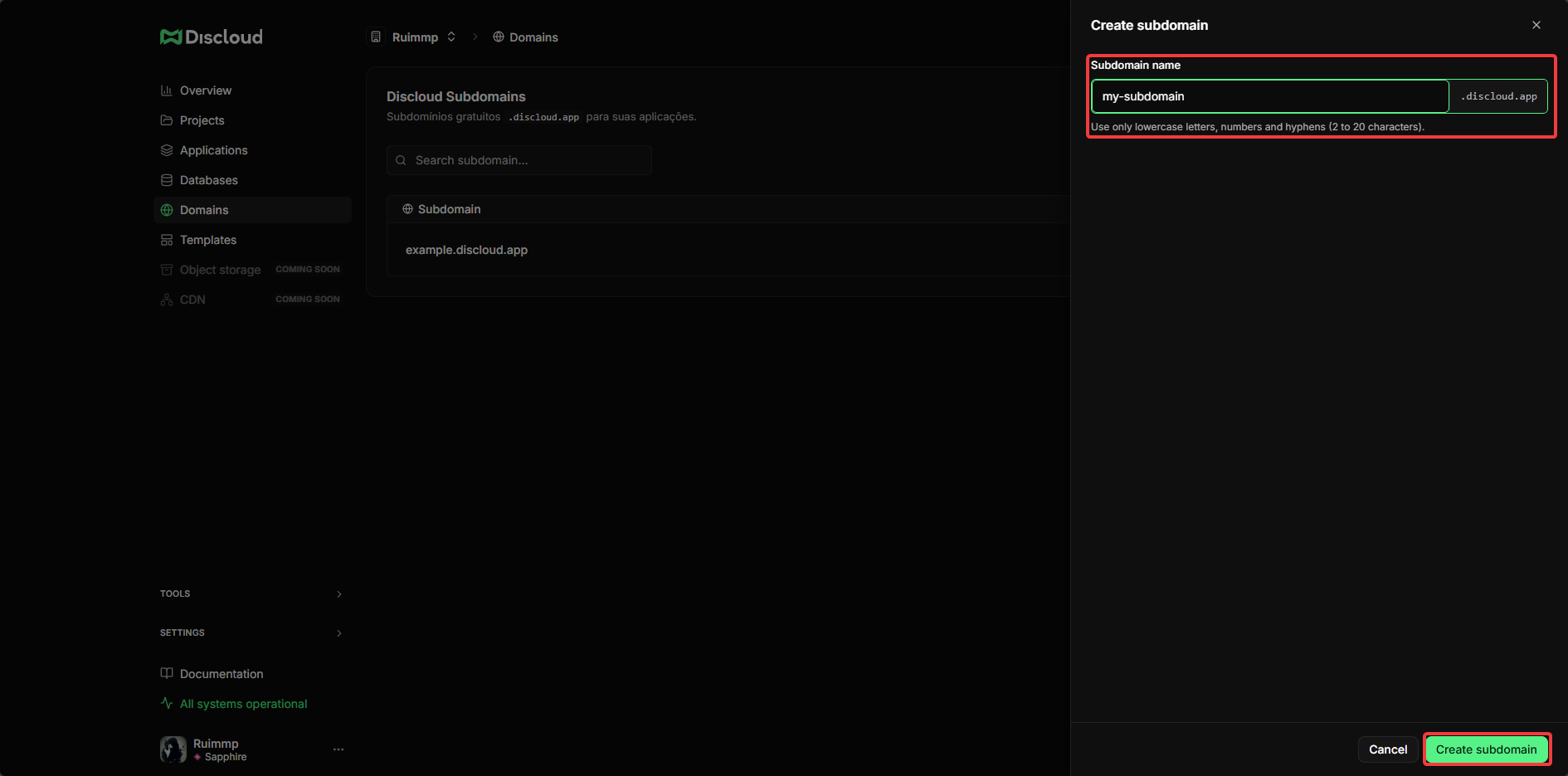
Enter your desired subdomain name (e.g., `myapp`, `dashboard`, `api`).
{% hint style="info" %}
#### **Subdomain naming rules**
* Between **2 and 20 characters**
* Only lowercase letters (a–z), numbers (0–9), and hyphens (-)
* No spaces, underscores, or special characters allowed
{% endhint %}
{% endstep %}
{% step %}
Your subdomain is now registered and its state will show as **Free**.
{% endstep %}
{% endstepper %}
***
## 📝 Configure Your [discloud.config](/en/configurations/discloud.config.md)
Once your subdomain is registered, you **must** add it to your `discloud.config` file so Discloud routes traffic to the correct app.
Open your `discloud.config` file and locate the `ID` field:
```ini
ID=yoursubdomain
```
{% hint style="warning" %}
#### **How to specify the subdomain in the `discloud.config` file?**
Use only the subdomain name, **not** the full domain (e.g., use `myapp`, not `myapp.discloud.app` or `myapp.discloud.dev`).
Example:
{% endhint %}
After updating `discloud.config`, **deploy your application** for the changes to take effect.
{% content-ref url="/pages/RqvtC8Sf6raBRtoj59Ea" %}
[How To Host](/en/how-to-host/bots.md)
{% endcontent-ref %}
***
## 🔄 Subdomain States
Your registered subdomain can have two states:
{% hint style="info" %}
#### **🔵 In use**
* The subdomain is **registered and in use**.
* An app is currently deployed and accessible at `https://yoursubdomain.discloud.app` or `https://yoursubdomain.discloud.dev`, depending on the domain chosen when the subdomain was created.
* Traffic is being routed to your app on port 8080.
{% endhint %}
{% hint style="info" %}
#### **🟢 Free**
* The subdomain is **registered and available**.
* No app is currently using it.
* You can deploy an app to activate it at any time.
{% endhint %}
***
## 🌍 Access Your Site
Once your subdomain is **In use**, you can access it at one of these addresses, depending on the domain chosen when the subdomain was created:
```
https://yoursubdomain.discloud.app
https://yoursubdomain.discloud.dev
```
***
## ⚙️ Custom Domain
If you want to use your own domain (e.g., `yourdomain.com`) instead of a Discloud subdomain, check:
{% content-ref url="/pages/mAM4xEwvrVKyPbbJ1ikt" %}
[Custom Domain](/en/api-and-integrations/custom-domain.md)
{% endcontent-ref %}
[^1]: **Note:** The ... only indicate the continuation of other previous or subsequent options that are not relevant to mention on this page.